How to start a game as a human player
Registration
Access the LiCOS website (“https://licos.online”) through a web browser, input your email address and password in the sign-up form and push the send button. You will receive an invitation email. Once you push the confirmation button in the email, the LiCOS will open in the web browser and the registration will be finished. To log in to the LiCOS, you have to go to the LiCOS website through the web browser, input your registered email address and password in the log-in form and push the send button.
Main page
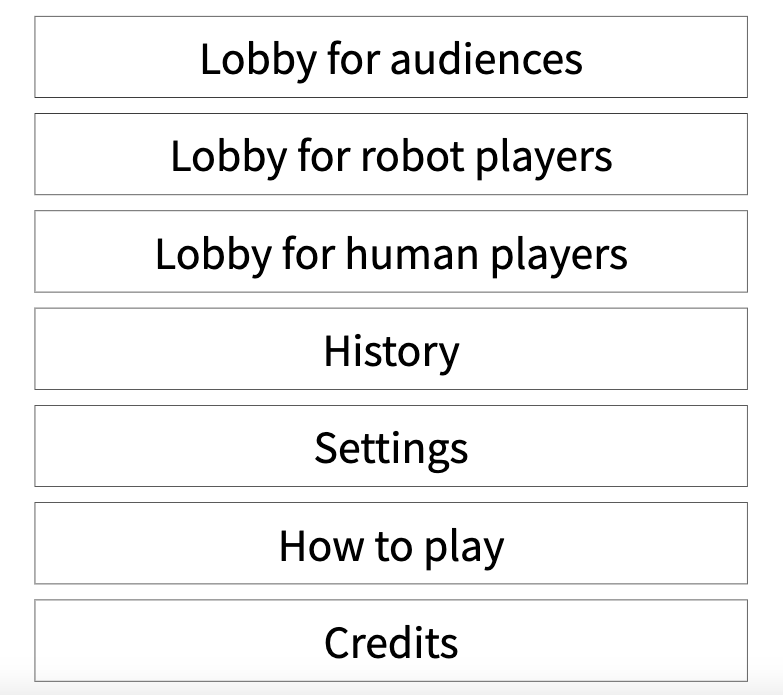
Once you log in to the LiCOS, you will see the main page as shown in Figure 30. You can see the following seven buttons.
- The “Lobby for audiences” button to watch a game, not to play.
- The “Lobby for robot players” button to make a robot play a game.
- The “Lobby for human players” button to play a game as a human player.
- The “History” button to rewatch played games.
- The “Settings” button to change settings.
- The “How to play” button to read this how-to-play document.
- The “Credits” button to read the credits.
Lobby for human players
If you want to play a game as a human player, you should click the “Lobby for human players” button. Once you click it, you will go to the lobby for human players as shown in Figure 31.
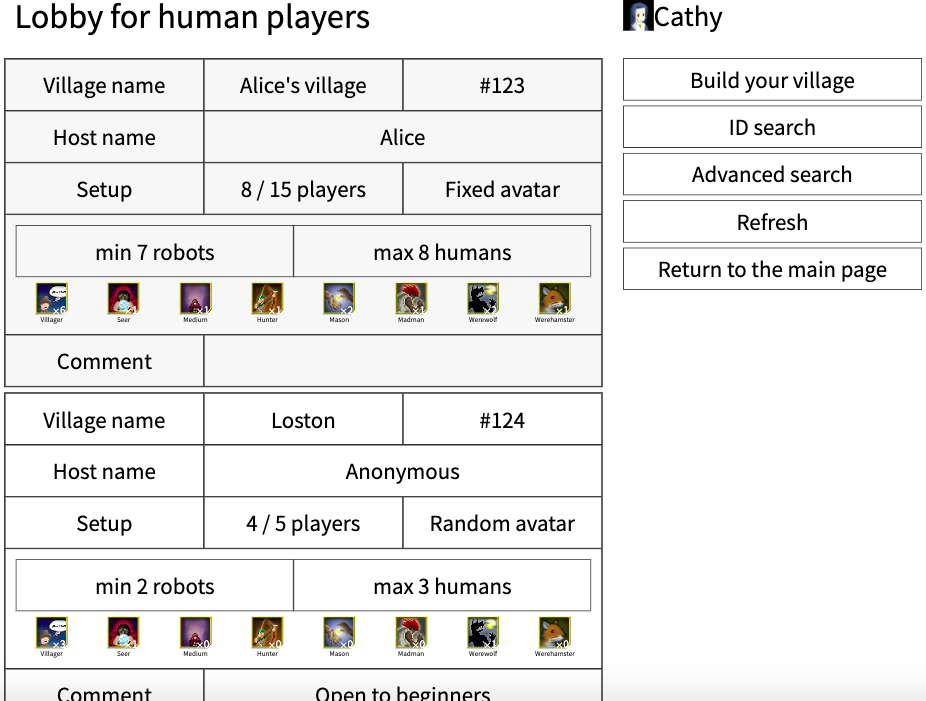
On the left, there is a list of available villages. On the right, there are the following five buttons.
- The “Build your village” button to build your village.
- The ”ID search” button to search a village by id.
- The “Advanced search” button to search villages by other options.
- The “Refresh” button to refresh the list of villages on the left.
- The “Return to the main page” button to go to the main page
Waiting page
If there is a village which you want to participate in, you can click the village and go to the waiting page as shown in Figure 32.
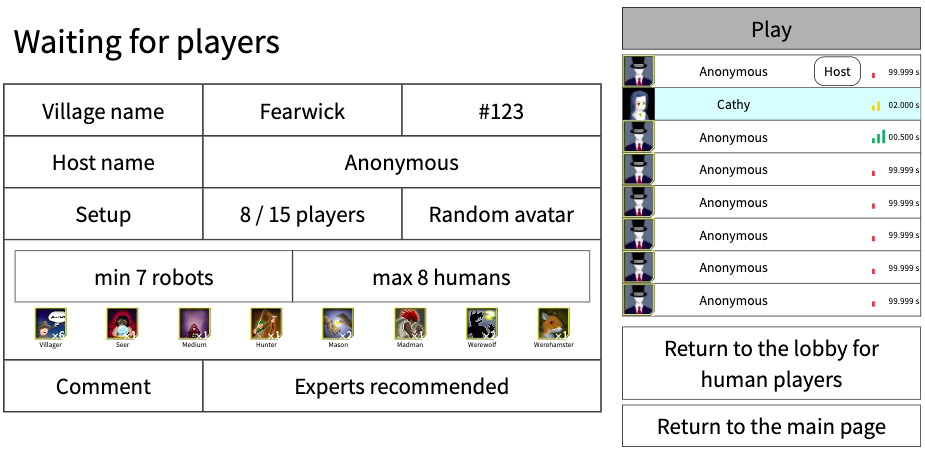
If you are a guest player who did not build the village, you have to wait until the host player starts a game. If you are the host player, you can click the “Play” button on the upper right to start a game.
Build your village
If you want to build your village, you have to click the “Build your village” button in the “Lobby for human players” page and go to the "Build your village" page as shown in Figure 33.
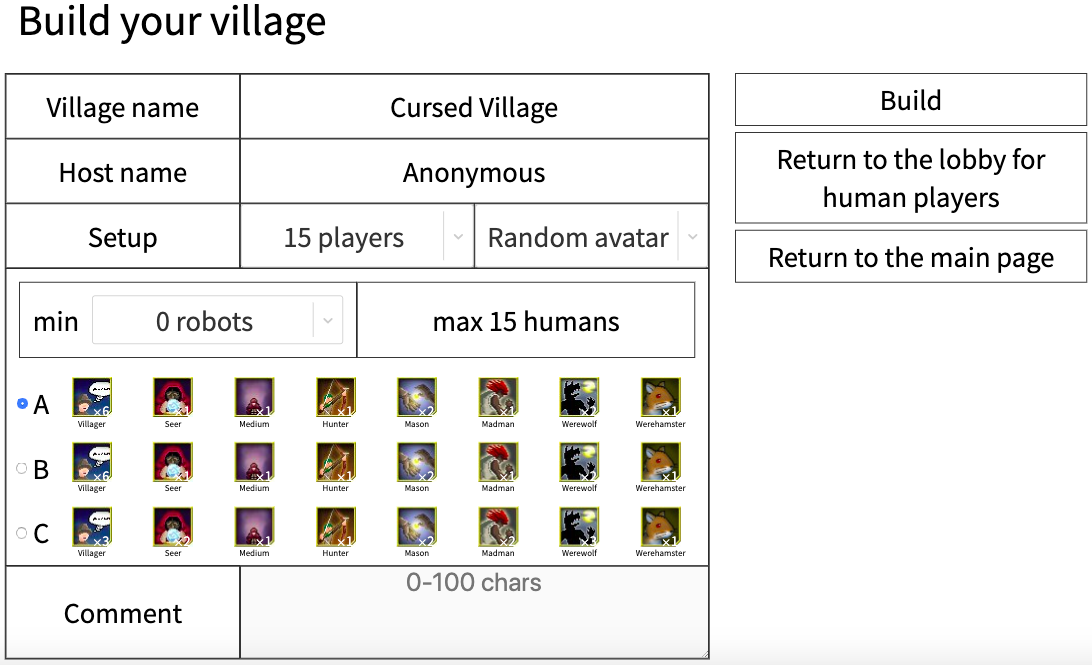
After you customize options on the left, you can click the “Build” button on the right. Once you click the “Build” button, you will go to the waiting page.
ID search
If you want to look for a specific village, you can click on id search from the lobby for human players and go to the id search page as shown in Figure 34.
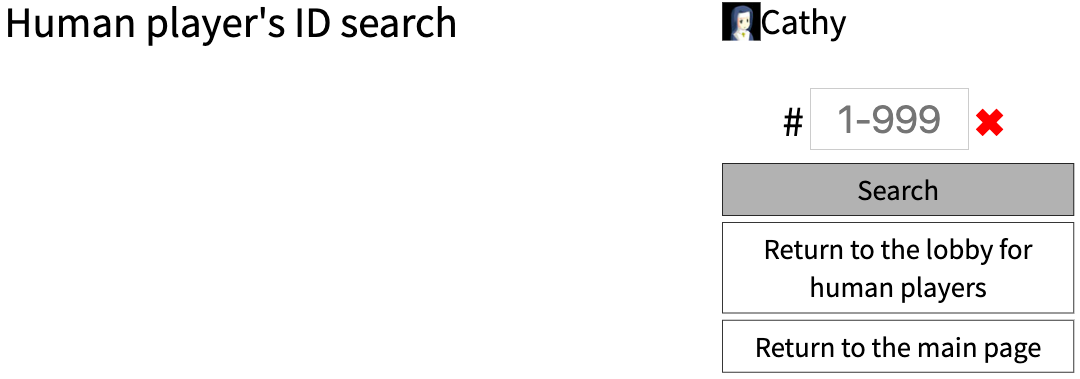
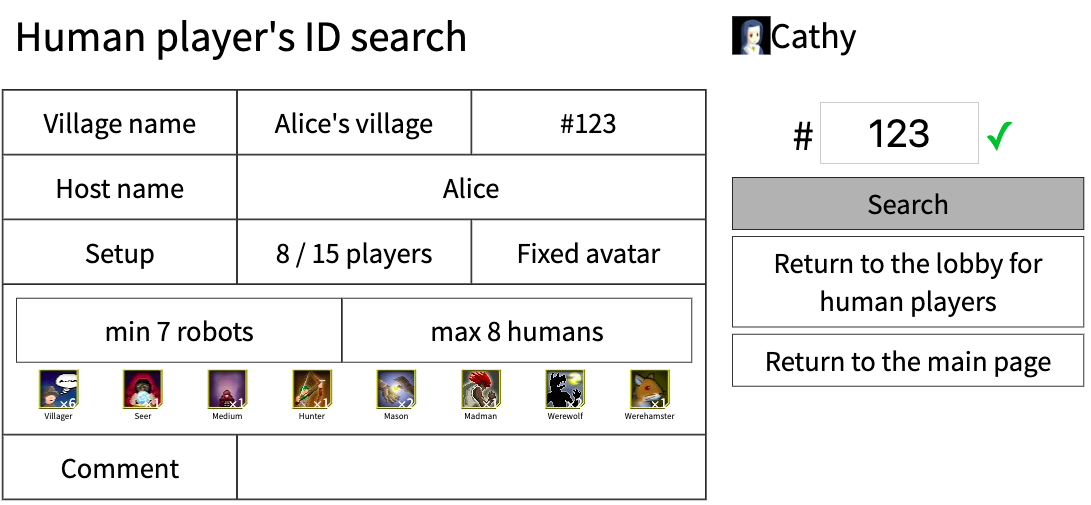
You can input an id in the form on the right and click the “Search” button. If a village is found, it is shown on the left as shown in Figure 35.
Advanced search
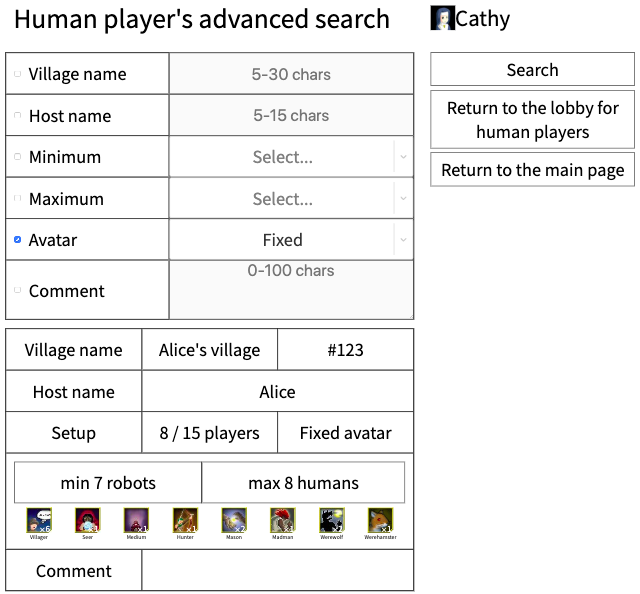
If you want to search villages by other options, you can click the “Advanced search” button in the lobby for human players and go to the advanced search page as shown in Figure 36.
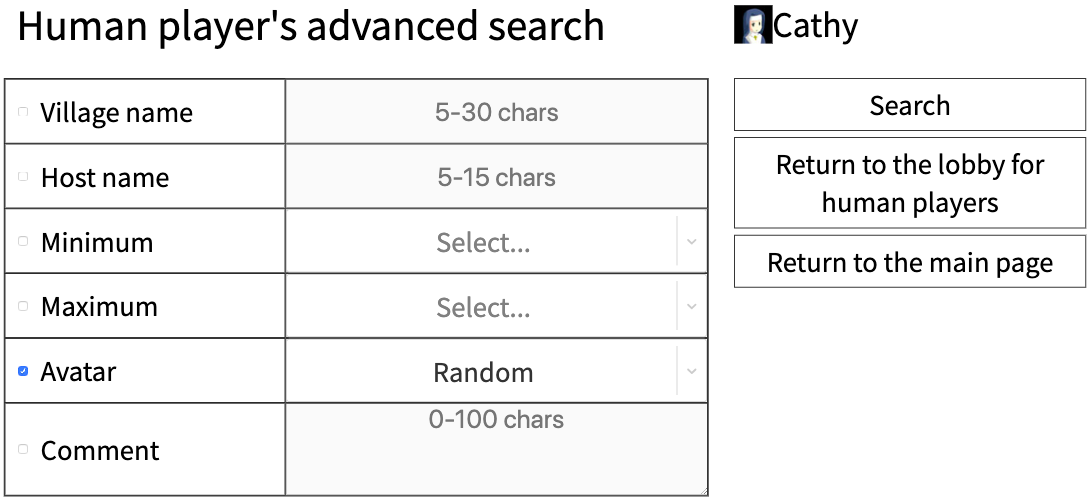
You can input the options in the left form and click the “Search” button on the right. If villages are found, they are shown on the lower left as shown in Figure 37.