
人間プレイヤー用グラフィカルユーザインタフェース
Figure 1 is a screenshot of a game played by human players using a web browser. In the upper left, we show the date and phase of the game and the remaining time until the next phase. In the upper right, we show the icon of the user's agent, name ("Yihan" in the screenshot), role ("Villager"), and team ("Villagers"). The center-left portion of the screen is dedicated to the chat-shaped timeline. In the lower part, there are three input forms the player can type their message in. The message from the left form (called the “public chat form”) will be shown to all the players. The message from the center form (“private memorandum form”) will be visible only to the player who has written it. The message from the right form (“werewolf chat form”) will be visible only to the werewolves. If the number of werewolves is one in the composition of the village, the werewolf chat form is not shown. In the center-right, there is the conjecture table. While talking to other players using the chat-shaped timeline, the player can easily organize their suppositions about the other players' identity on the conjecture table.
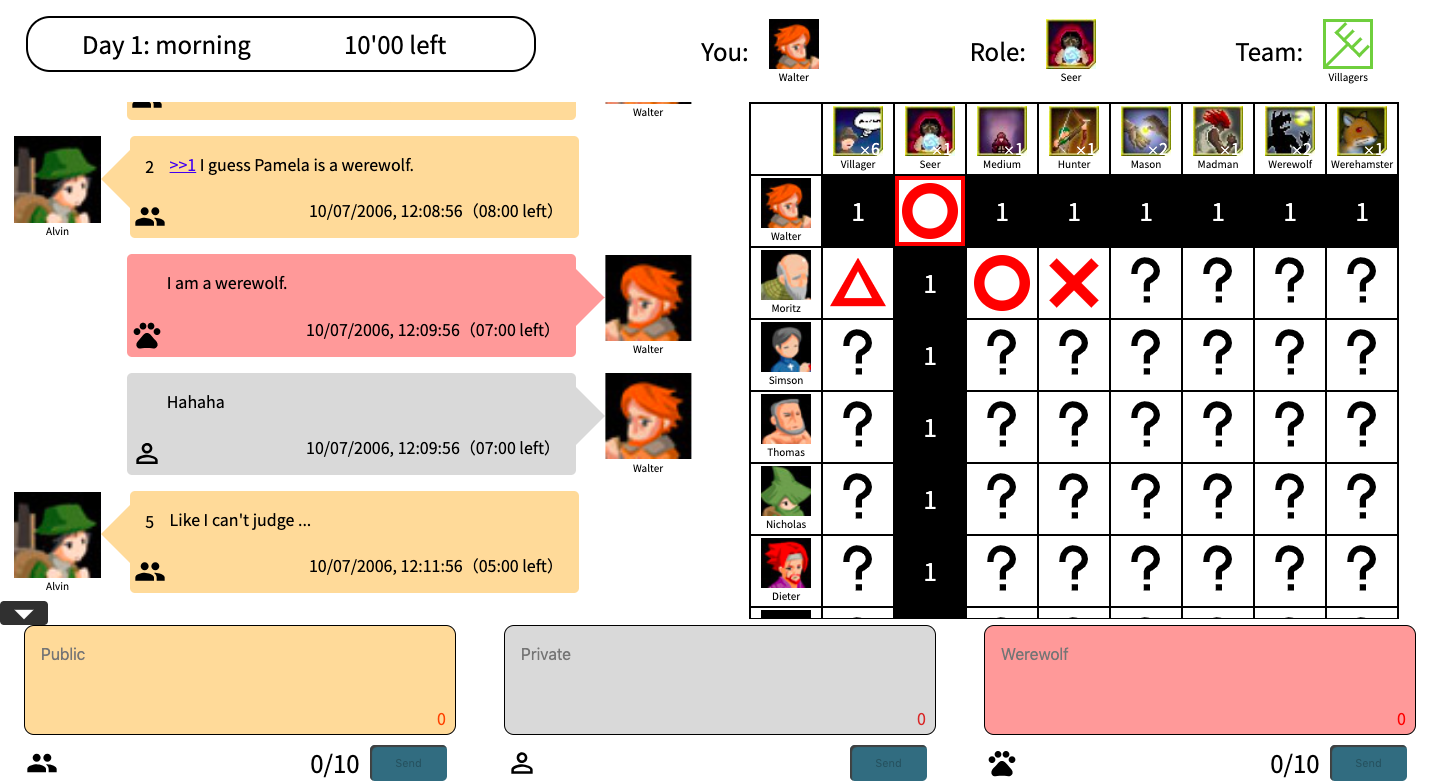
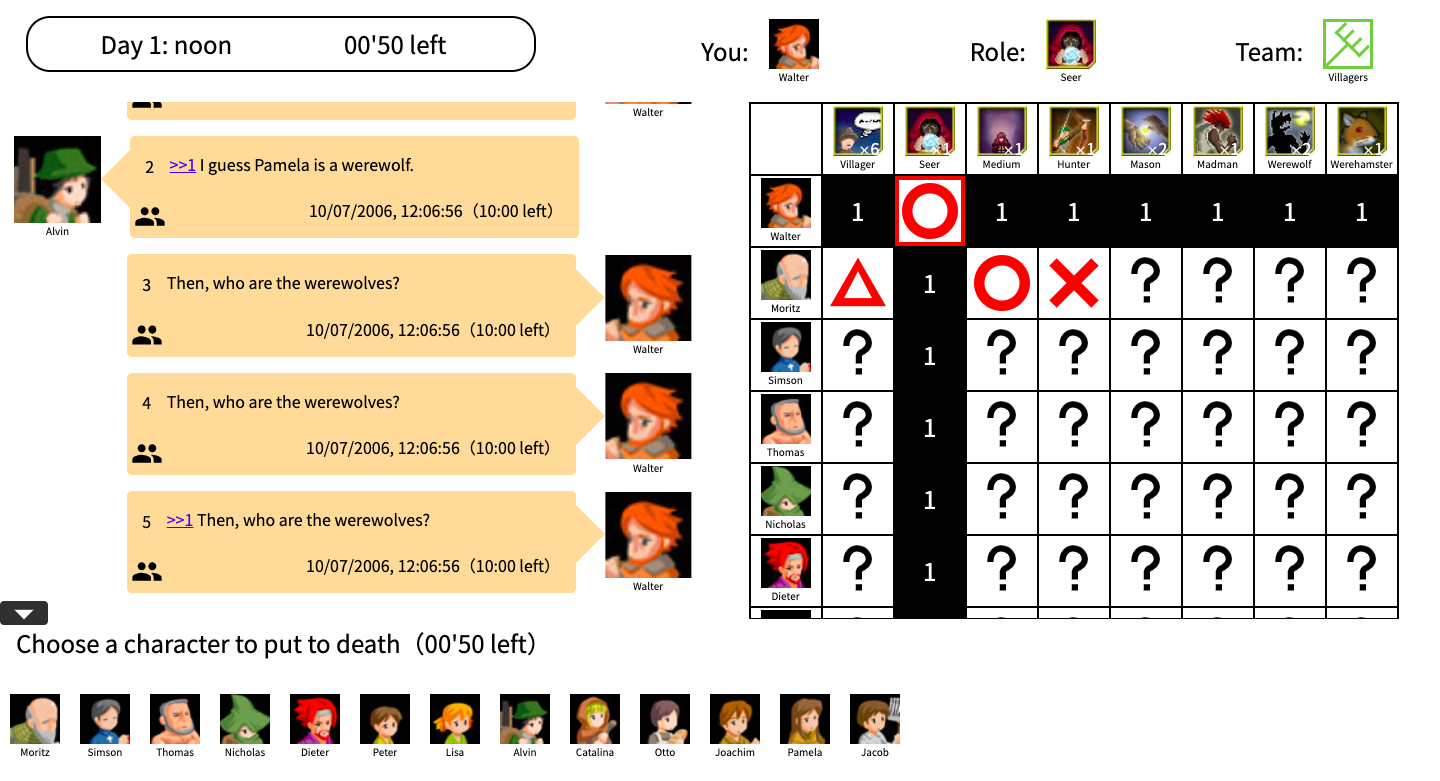
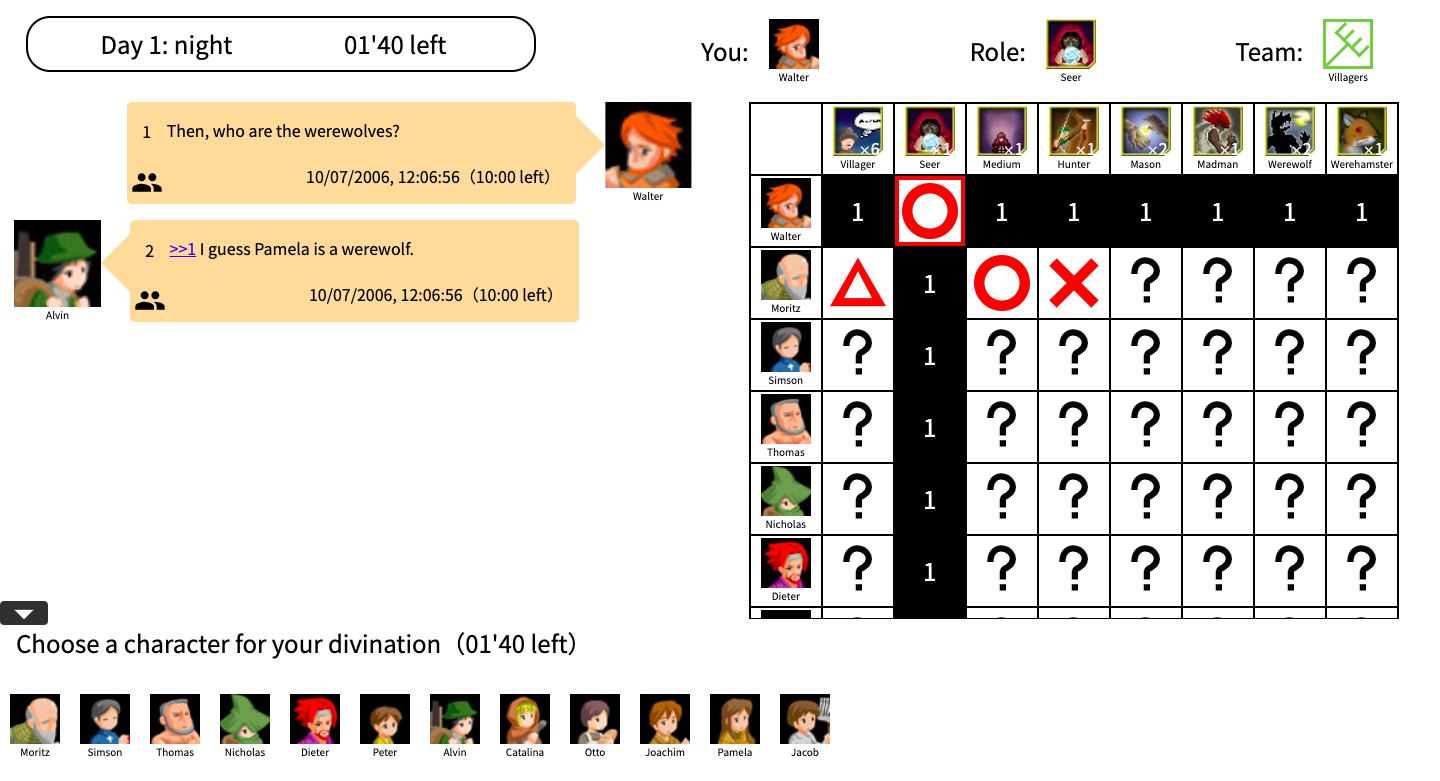
Figure 2 is a screenshot of the noon phase and Figure 3 is a screenshot of the night phase. The lower part of the noon phase and the night phase is different from the morning phase. In the lower part, instead of input forms for the chat-shaped timeline, there is a list of agents on who to perform an action (the action differs according to phase and role).
Graveyard
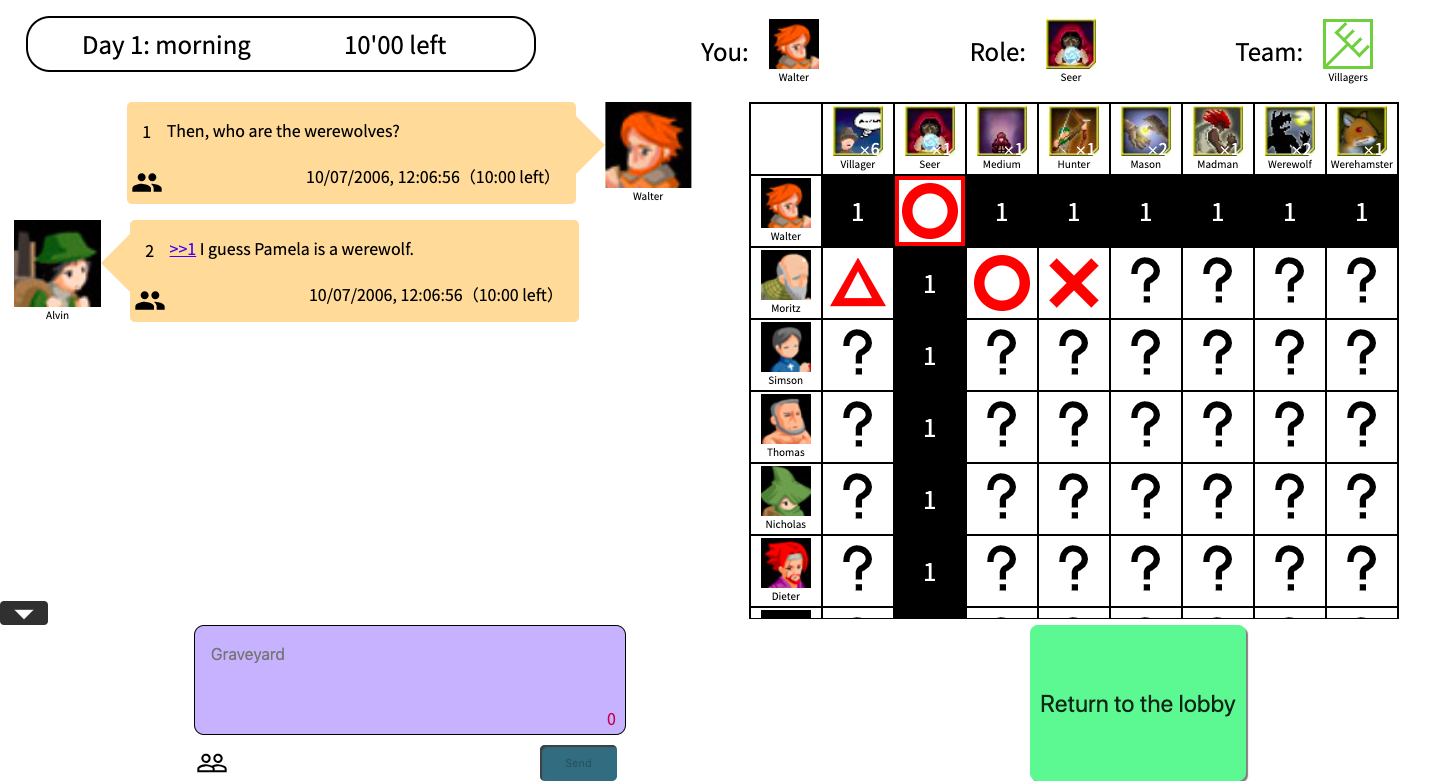
Figure 4 is a screenshot of the graveyard. A ghost can see only one form in the lower part of the screen, which they can type their message in. The message from the form (called “graveyard message form”) will be visible only to the ghosts. In the lower right, there is a button (“return button”) for leaving the game and return to the lobby.
Chat input form
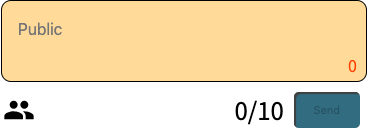
The chat input form appears in the lower part. Figure 5 shows an example of the chat input form. It consists of a textarea in the upper part, an icon in the lower left and a button in the lower right.
The textarea
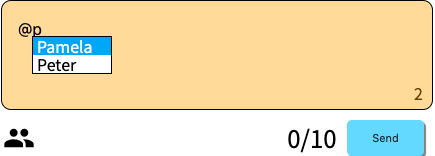
The numerals in the lower right of the textarea represents the character count. If the count is zero or more than the character limit, the numerals are red. Otherwise, the numerals are black. If the player starts to type particular terms referred to the game (with the prefix “@”), suggestions appear as shown in Figure 6.
The button
Once the player pushes the button, the message in the textarea is sent to the chat-shaped timeline. When the numerals in the textarea are red or in the next 5 seconds after pushing the button, the button is unavailable.
The icon
The icon, the color of the textarea and the placeholder text represent the message form type. There are the following five types of message forms.
1. Public chat form
In the morning, if the player is still alive, the public chat form appears. The message from the form will be shown to all the players. The placeholder text is a “public” if the locale is English. The color of the public chat is orange and the icon is shown in Figure 7.

2. Private memorandum form
In the morning, if the player is still alive, the private memorandum form appears. The message from the form will be shown only to the player who has written it. The placeholder text is a “private” if the locale is English. The color of the private memorandum is gray and the icon is shown in Figure 8.

3. Werewolf chat form
In the morning, if the werewolf is still alive and the number of werewolves in the village composition is more than one, the werewolf chat form appears. The message from the form will be shown only to all the werewolves. The placeholder text is a “werewolf” if the locale is English. The color of the werewolf chat is red and the icon is shown in Figure 9.

4. Graveyard chat form
If the player is dead, the graveyard chat form appears. The message from the form will be shown only to all the ghosts. The placeholder text is a “graveyard” if the locale is English. The color of the graveyard chat is blue and the icon is shown in Figure 10.

5. Post-mortem discussion form
Within twenty-four hours after the end of the game, the post-mortem discussion form is visible. The message from the form will be shown to all the players. The placeholder text is a “post-mortem discussion” if the locale is English. The color and the icon of the post-mortem discussion are the same as the the public chat, so the color of the post-mortem discussion is orange and the icon is shown in Figure 11.

Chat-shaped timeline
Chat-shaped timeline is a list of message balloons ordered by server timestamp. The latest message is placed in the lowest and the oldest one is placed in the most upper.
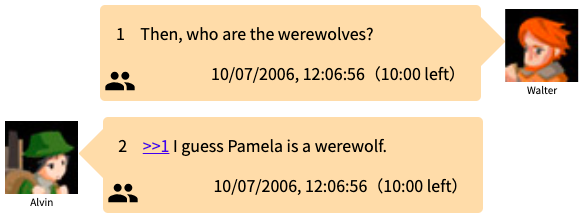
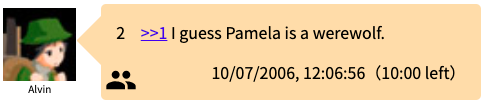
The player own icon is placed in the right of the balloon as shown in Figure 13 and an another player’s icon is shown in the left of the balloon as shown in Figure 14.
The balloon
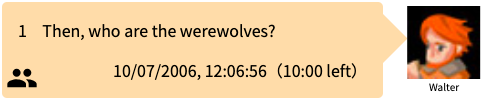
The balloon consists of the number, the message, the icon, the color and the timestamp. There is the number in the upper left in the balloon if the message type is the public chat, the master comment or the post-mortem discussion. The message is in the upper right. The icon is in the lower left. The timestamp is in the lower right.
The timestamp
The game server generates the time stamp. The time zone depends on where the game server is. For example, if the game server is in Japan, the time zone of the time stamp is JST (Japan standard time).
The icon and the color
The icon and the color represents the message type. There are the following six types of messages.
1. The public chat
The message is shown to all the players. The color of the public chat is orange and the icon is shown in Figure 15.

2. The private memorandum
The message is shown only to the player who has written it. The color of the private memorandum is gray and the icon is shown in Figure 16.

3. The werewolf chat
The message is shown only to all the werewolves. The color of the werewolf chat is red and the icon is shown in Figure 17.

4. The graveyard chat
The message is shown only to all the ghosts. The color of the graveyard chat is blue and the icon is shown in Figure 18.

5. The master comment
The message is shown to all the players. The color of the master comment is green and the icon is shown in Figure 19.

6. The audience chat
The message is shown to all the audiences except the players. The color of the audience chat is orange and the icon is shown in Figure 20.

Vote input form
When noon or night comes, the vote input form as shown in Figure 21 appears in the lower part of the screen. If the phase is noon, the vote input form shows an agent list who to put to death. If the phase is night, if the role is the werewolf, it shows an agent list who to attack. If the role is the seer, it shows an agent list who to learn the truth of. If the role is the hunter, it shows an agent list who to guard.

Otherwise, it shows no agent list as shown in Figure 22.

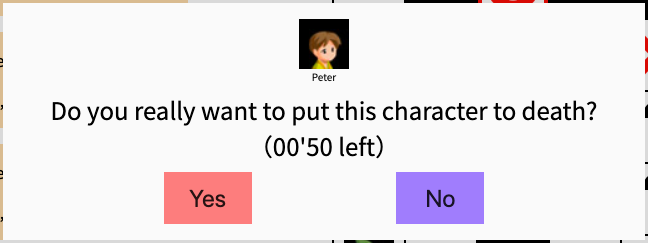
Once the player push an agent icon in the list, the confirmation dialog appears as shown in Figure 23. The player can choose the “Yes” or the “No”. After the player chooses the “Yes”, no agent list appears and they cannot reselect another agent as shown in Figure 24. However if the player chooses the “No”, the agent list appears again and they can reselect an agent.

Conjecture table
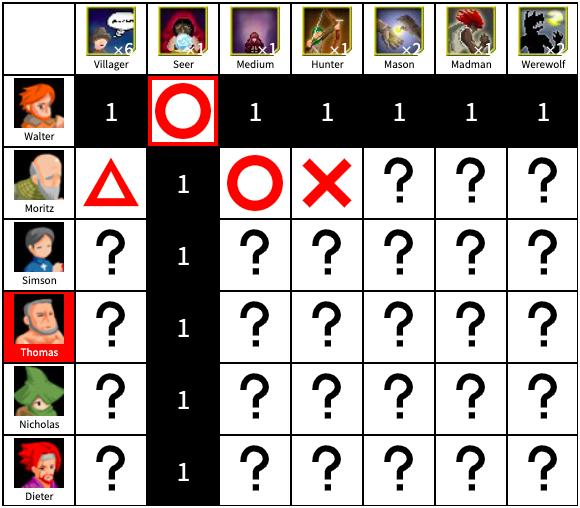
Figure 25 shows an example of the conjecture table.
The first row shows the role icons. When the player clicks a role icon, the role description appears.
The first column shows the agent icons. If an agent is dead, the cell is colored in red. In the beginning of a new phase, the newly dead agents’ icons flashes red for a few seconds before turning red.
The other cells show the player’s conjectures. The default value is a question mark. The player can change the question mark to a triangle, a circle or a cross by clicking the cell.
When a player’s role is no longer undefined, the system automatically inserts a red circle and the cell border becomes red to indicate it can no longer be modified. At the same time, the other unmodifiable cells become black with a white number indicating the day in which the cells changed. For example, in Figure 25, the player Walter is the seer, therefore there is a circle on the column of the seer. Also, there is only one seer in the game, therefore the other players cannot be the seer. This is why the seer column is turned black. Moreover, since Walter’s role is the seer, all the other roles are backed out.
Roles like the mason and the werewolf know from the beginning the identities of the players with the same role, so their cells become unmodifiable too.
Roles like the seer and the medium have the ability to know if certain players are werewolves or not, so that information is reflected on the conjecture table.
Results
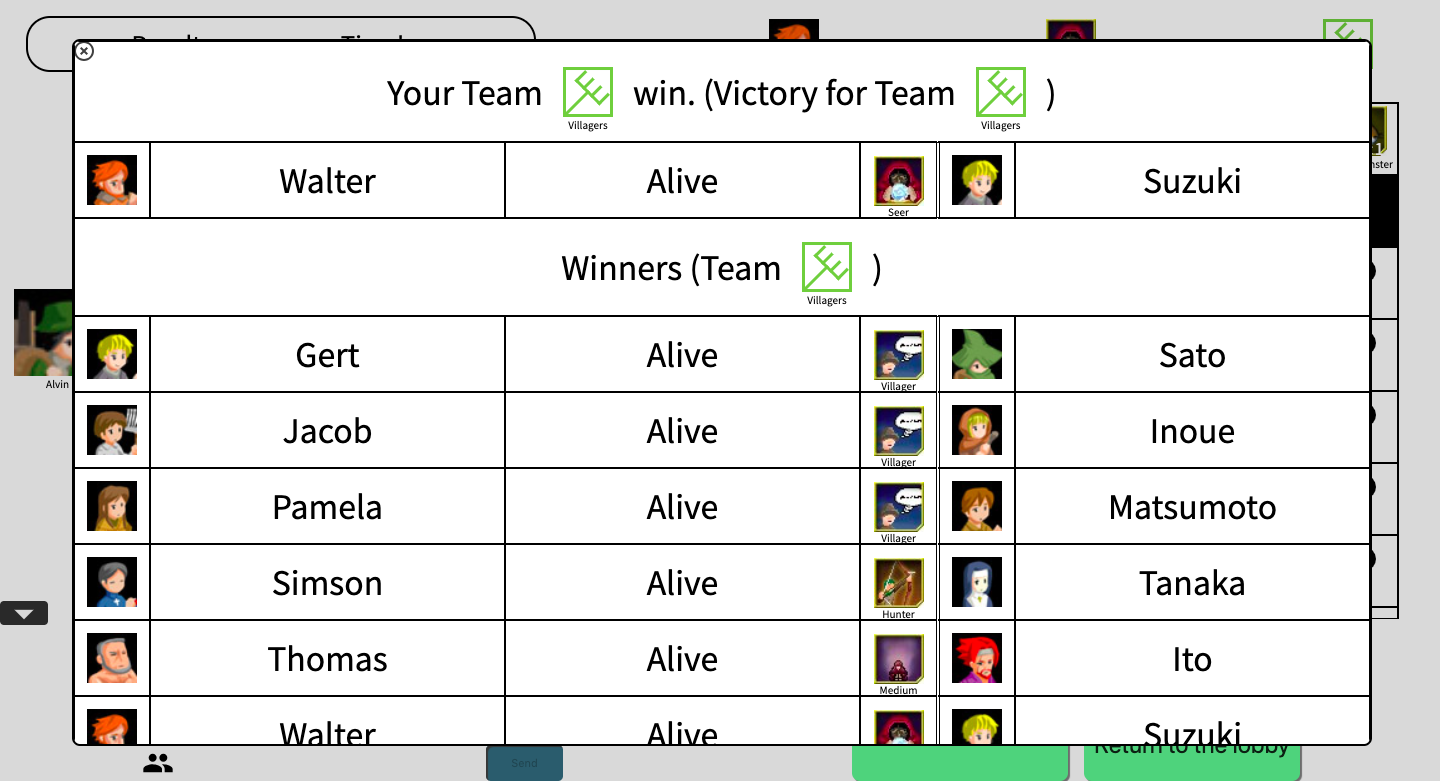
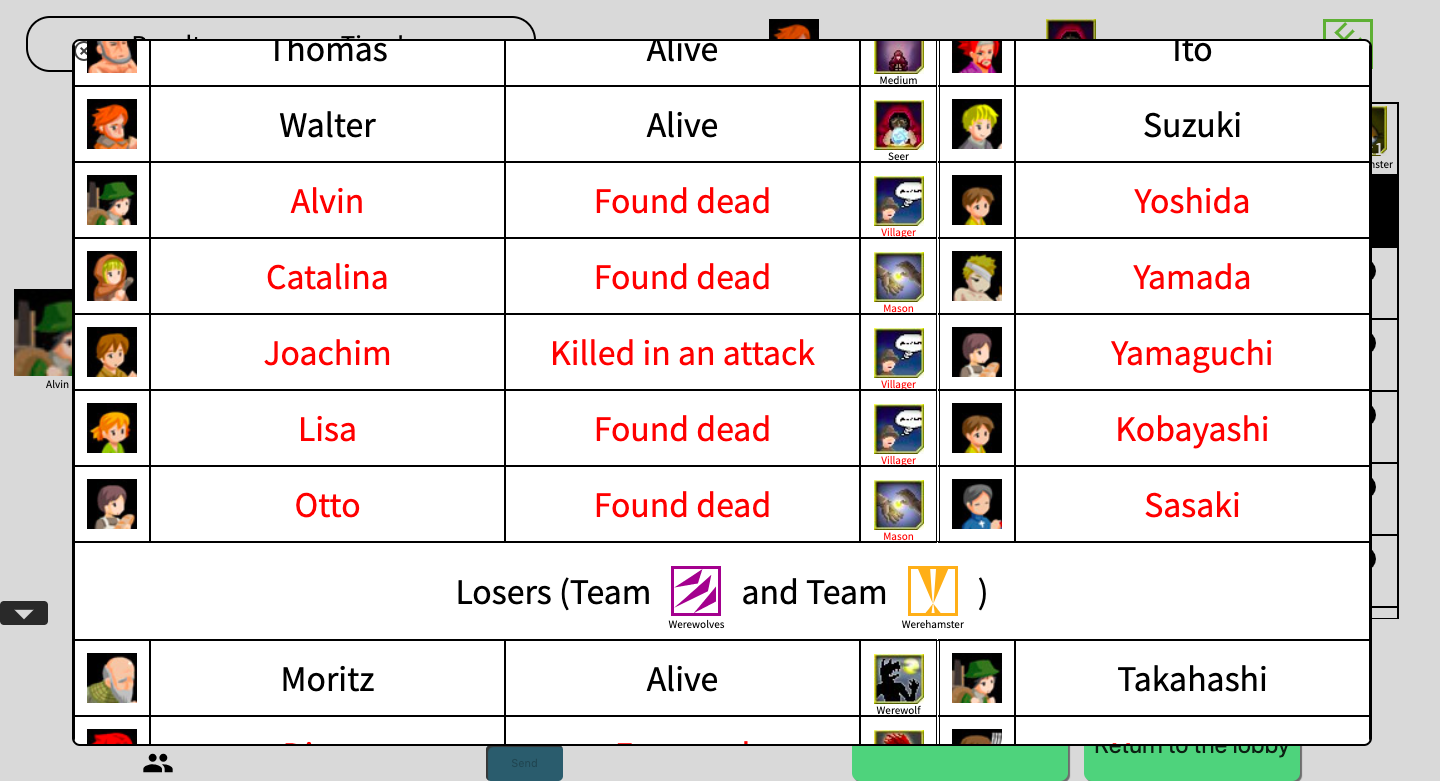
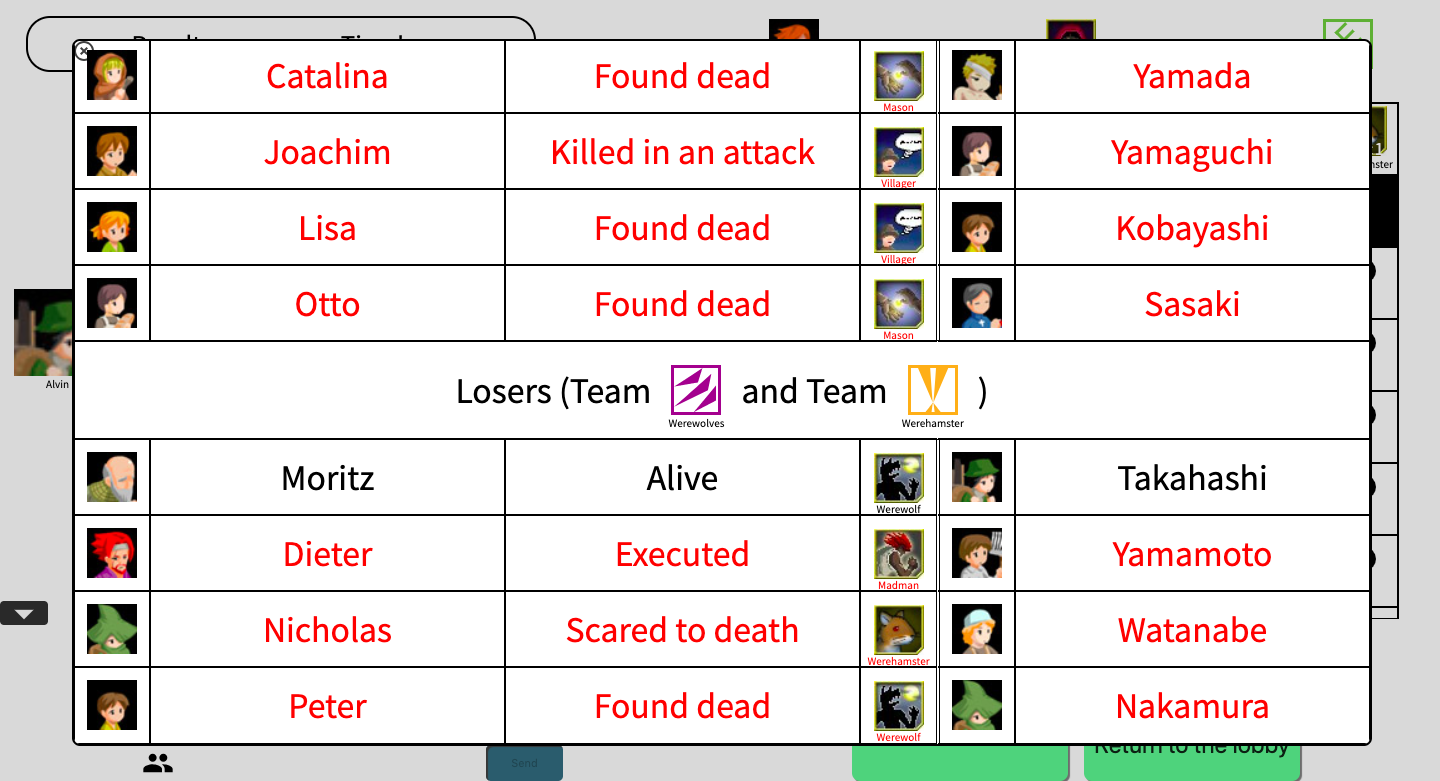
Figure 26-28 show an example of the results. The result screen is composed of three tables. The first one shows if one’s team has won or lost and one’s own status: agent icon, agent name, status at the end of the game, role icon, user icon and username.
The second table shows the winners’ team details and the third table shows the losers’ team details. The dead players are shown in red.
Post-mortem discussion
After the end of the game, the post-mortem discussion form appears in the lower left and the three buttons appear in the lower right as shown in Figure 29.

Post-mortem discussion form
The players can participate in the post-mortem discussion up to twenty-four hours after the end of the game.
The three buttons
The left button (called the “result button”) is for showing the results. The upper right button (“next game button”) is for leaving the game and moving to the next game. The lower right button (“return button”) is for leaving the game and returning to the lobby. If the player is the host, the next game button is always available. If the player is a guest, the next game button becomes unavailable in the following cases.
- Before the host player pushes the next game button.
- If the host player does not move on to the next game.
- When the next game’s maximum number of payers has been reached.
- After the next game starts.